
Help
Everything the app does, in the order you'll use it. Costing your first dish takes about ten minutes. New to the formulas? Read how to calculate food cost first.
1. Before you start: settings
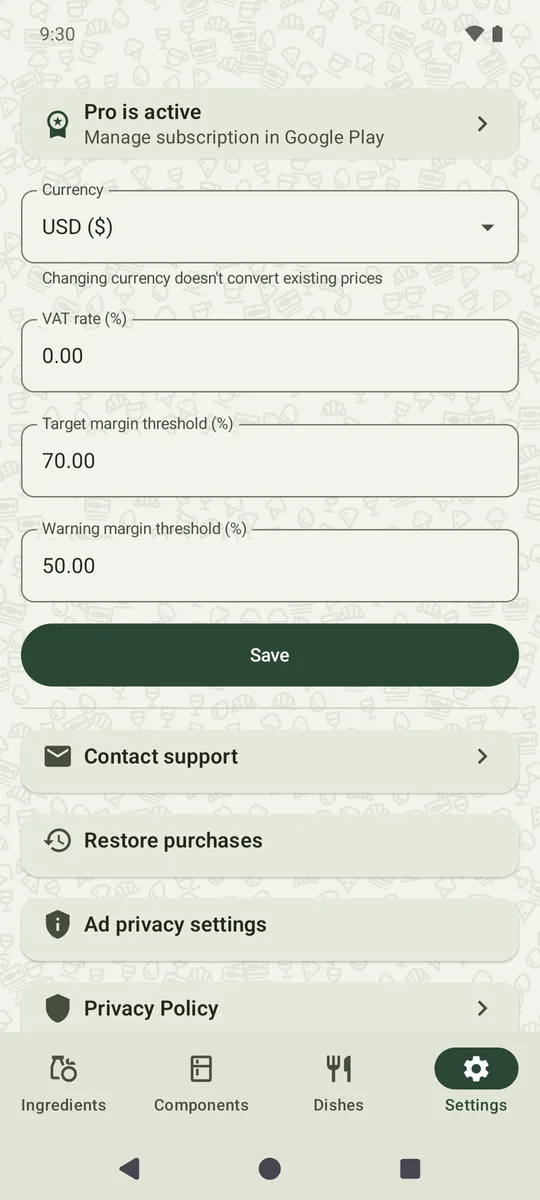
Open Settings (the last tab) and check three things:
- Currency: picked from your phone's region on first launch. Changing it later only changes the symbol; it does not convert prices you have already entered.
- VAT rate: the tax included in your menu prices, e.g. 8% or 20%. The app removes it before calculating food cost. If your menu prices exclude tax (as in the US), enter 0.
- Margin thresholds: the target (70% by default) and the warning level (50%). Dishes with a margin at or above the target are rated Good, those between the two thresholds Warning, and those below the warning level Poor.
Tap Save. You can change these at any time, and every dish is recalculated.
2. Ingredients
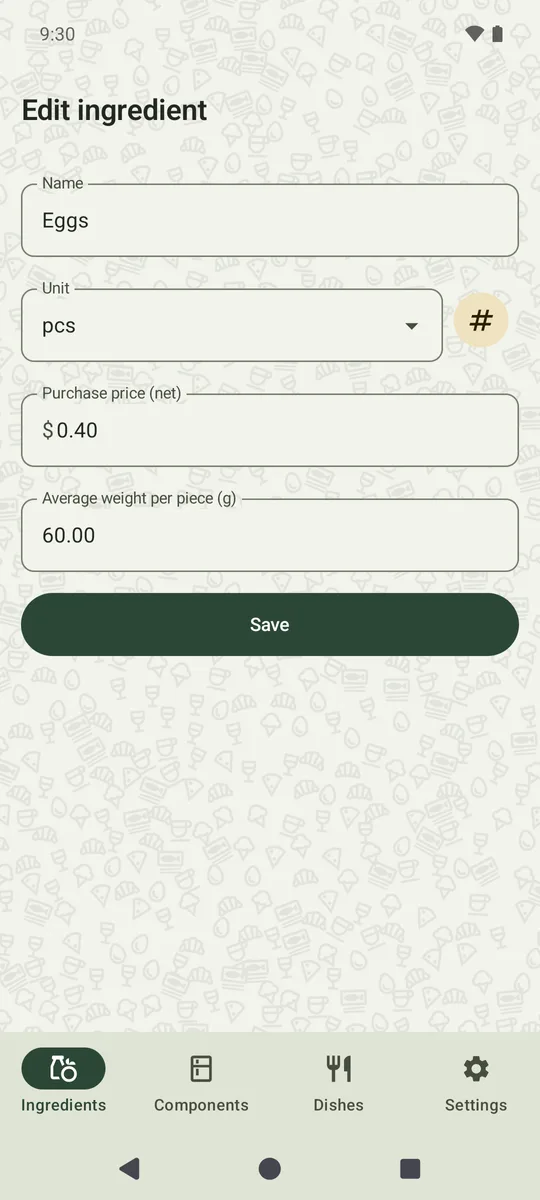
On the Ingredients tab, tap + and fill in:
- Name, e.g. “Ground beef”.
- Unit you buy in: kg, g, l, ml, pieces, lb, oz, gal or fl oz.
- Purchase price (net) per unit, without reclaimable VAT, e.g. 13.00 per kg.
- Average weight per piece (for items bought by the piece, like eggs or lemons). With it, a recipe can use the item in grams as well as in pieces.
In recipes you can use any unit of the same kind: buy in kilograms, use in grams or ounces.
Updating prices
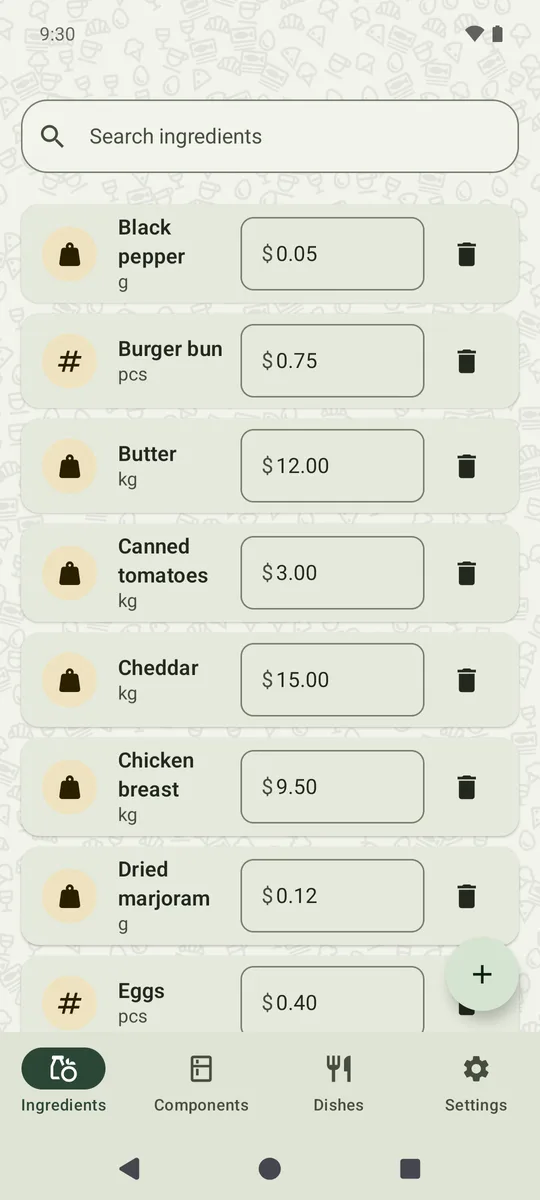
When a supplier changes a price, edit it right in the list: tap the price, type the new value and press Done. It is saved as soon as you leave the field, and every recipe that uses the ingredient recalculates.
Deleting
The bin icon archives the ingredient; tap Undo on the message to bring it back. Recipes that already use it keep its last price, and its line is marked “Archived”.
Once an ingredient is used in a recipe, its unit type (weight, volume or count) can't be changed, because the recipes would stop adding up. Archive it and create a new one instead.
3. Prep components
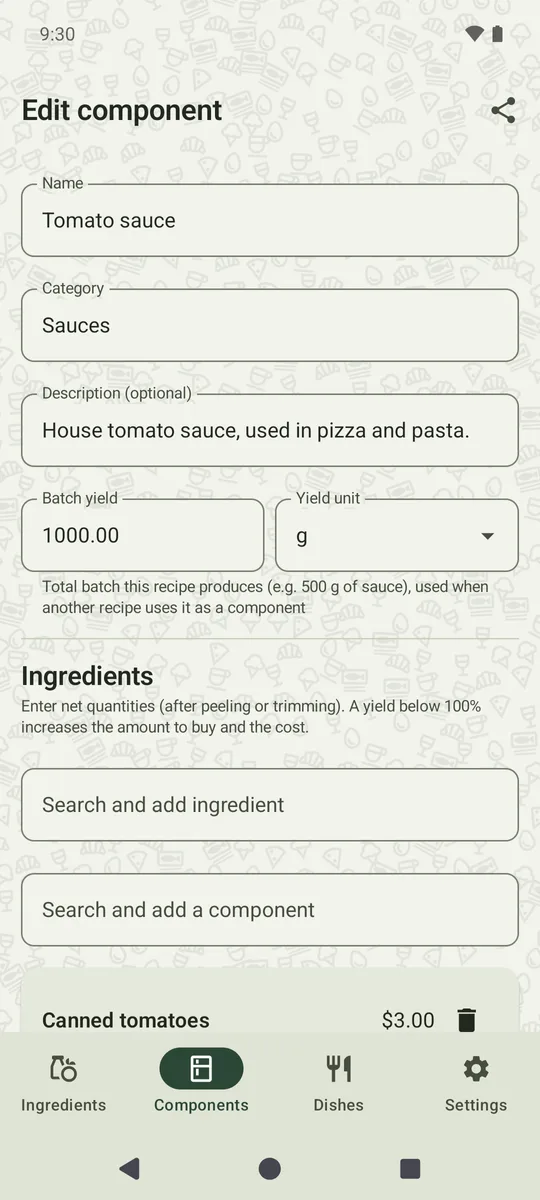
A component is anything you prepare in batches and use in several dishes: sauces, doughs, stocks, fries. On the Components tab, tap +:
- Enter the name and, optionally, a category and description.
- Set the batch yield: how much the whole batch makes, e.g. 1000 g of sauce or 1.65 kg of dough.
- Add ingredients with their quantities (see recipe lines below).
The list shows the cost of each batch and how many recipes use it (“Used in”). Components are built from ingredients only; a component can't contain another component.
4. Costing a dish
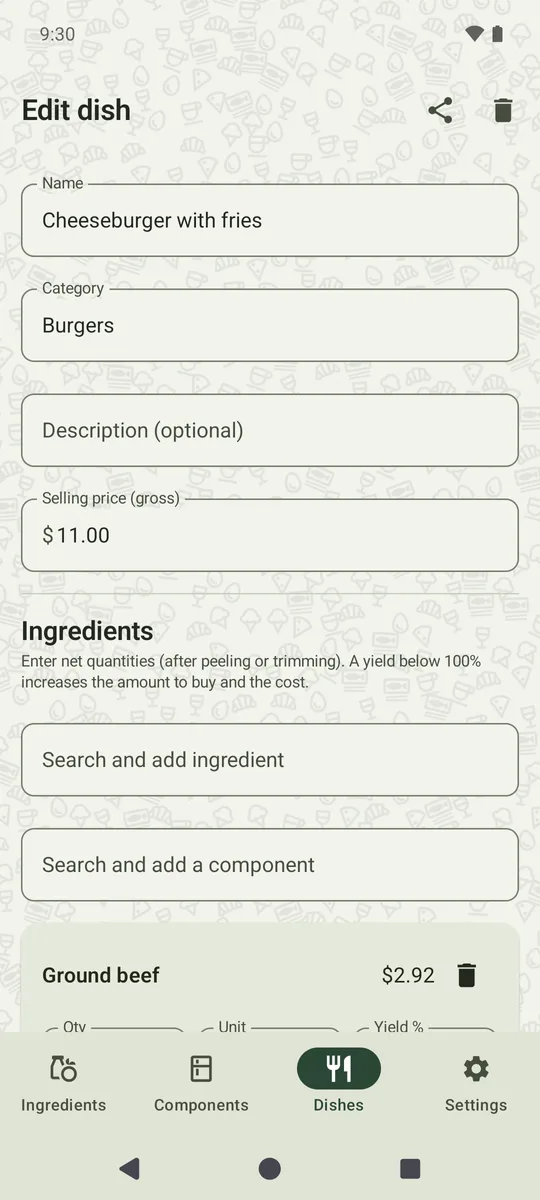
On the Dishes tab, tap +. Enter the name, a category (used to group dishes in the PDF report) and the selling price exactly as on your menu, tax included. Then add what goes on the plate:
- Search and add ingredient: type part of the name and pick it from the list.
- Search and add a component: add a sauce, dough or other prep item.
Recipe lines
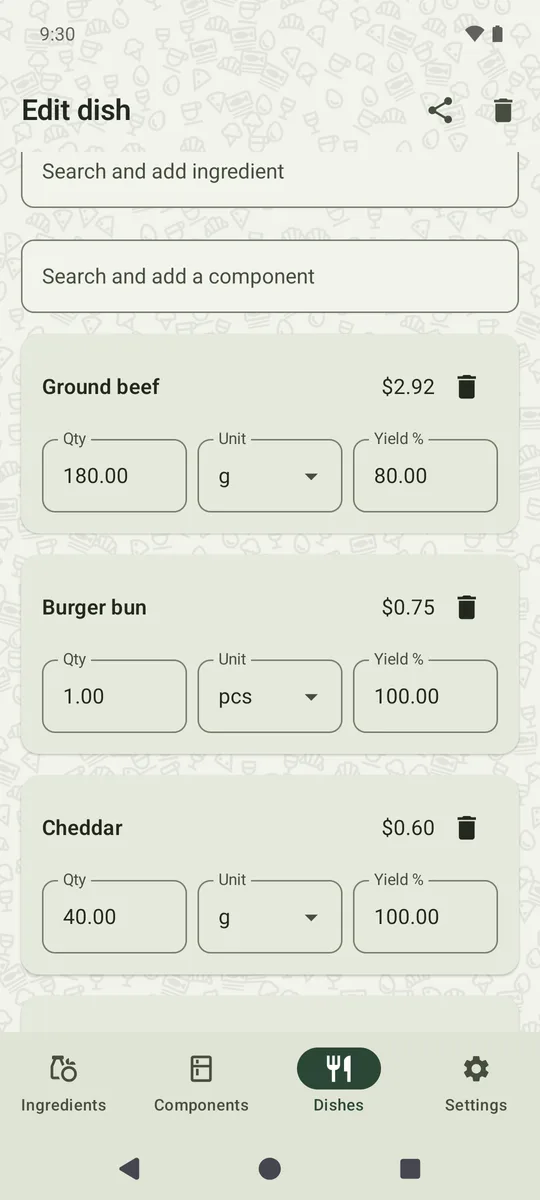
Each line has three fields:
- Qty: the net amount in one portion, after peeling, trimming or cooking.
- Unit: any unit of the same kind as the ingredient.
- Yield %: how much of the purchased product is usable. 80% for ground beef means you buy 225 g to serve 180 g. Leave 100% when nothing is lost.
The cost of each line is shown next to its name. Use the bin icon to remove a line.
The result
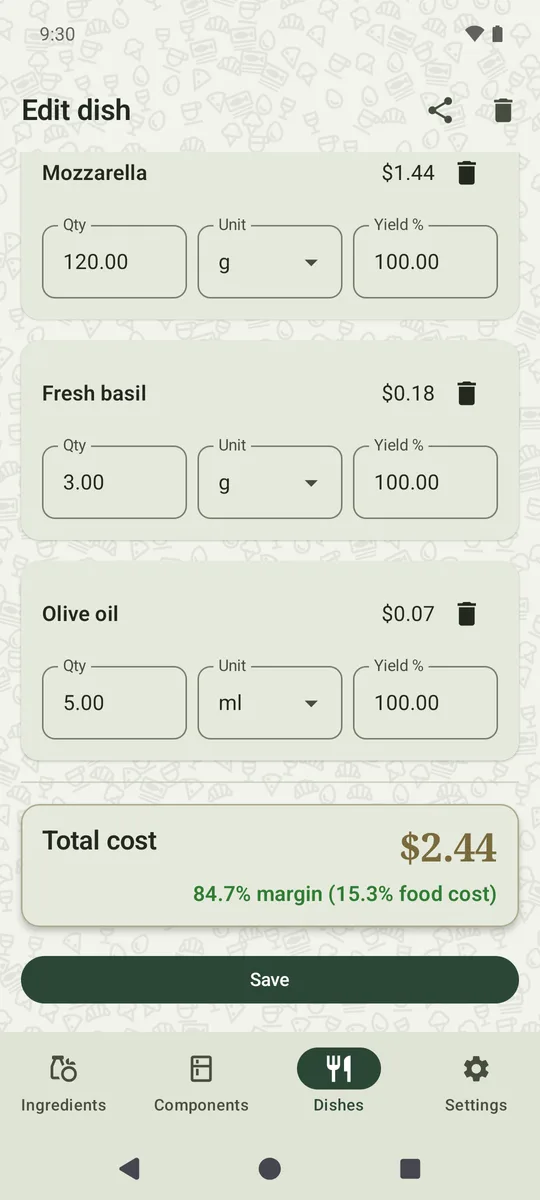
At the bottom, Total cost shows the cost of one portion, with the margin and food cost in the color of its rating. Everything updates as you type, so you can try a different portion size or price before saving.
Tap Save when you're done. To delete a dish, open it and tap the bin icon at the top. Components are deleted the same way; if one is used in other recipes, the app asks first, and those recipes keep its last cost.
5. Your menu at a glance
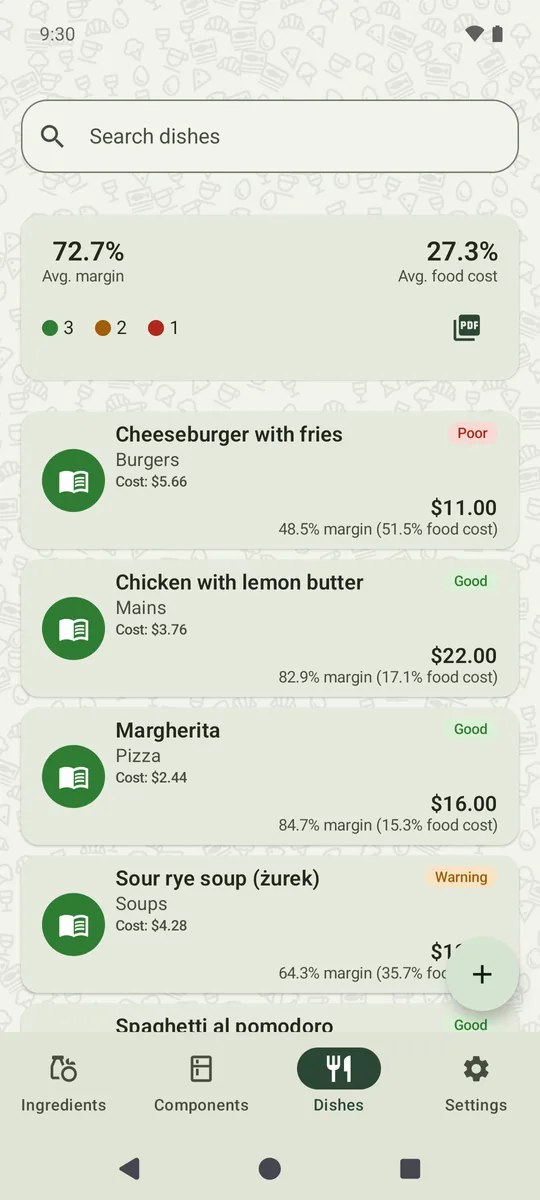
The Dishes tab is your menu overview:
- The summary card shows the average margin and average food cost of the dishes currently on your menu, and how many are Good, Warning and Poor.
- Each dish shows its cost, menu price, margin and rating, so the weakest items stand out.
- The round book icon on the left of each dish puts it on or takes it off the current menu, for example for seasonal dishes. Dishes off the menu are dimmed and left out of the summary and the PDF report, but nothing is deleted.
Use the search field to find a dish by name.
6. Recipe cards and PDF reports (Pro)
- Recipe card: in a dish or component, tap the share icon at the top. The app creates a text card with the ingredients and their quantities, the total cost, price and margin, and lets you send it to any app: messages, email, notes or a printer.
- Menu cost report: tap the PDF icon on the Dishes summary card. The report lists every dish on the current menu, grouped by category, with gross price, cost, food cost and margin. Share it or save it from the share sheet.
7. Free and Pro
- Free: up to 10 dishes with a selling price, unlimited ingredients and components, all costing tools. Banner ads are shown on list screens.
- Pro: unlimited dishes, recipe cards, the PDF menu report and no ads. Choose a monthly or yearly plan at the top of Settings; if a free trial is available, it is shown there. Payment is handled by Google Play.
Managing your subscription
- Cancel: open your subscriptions in Google Play, select Food Cost Pro and tap Cancel subscription. Uninstalling the app does not cancel it. Pro stays active until the end of the period you have paid for.
- New phone or reinstall: sign in with the same Google account and tap Restore purchases in Settings.
- If Pro ends while you have more than 10 dishes, your 10 oldest dishes stay editable and the rest are locked (padlock icon). Nothing is deleted; they unlock when you subscribe again.
8. Privacy, ads and support
- Your data is stored only on your phone. There is no account and no server. Read the privacy policy for details.
- In the EEA and the UK you can change your ad consent at any time in Settings, Ad privacy settings.
- Questions or a bug? Tap Contact support in Settings or write to support@foodcostcalc.app.